OVERVIEW
This article is for our Sales Team partners who make sales on behalf of multiple Brands, and want to streamline the ordering process for existing Sales partners, and encourage cross-selling and bundling efficiencies across our entire slate of Nabis Brands.
Giving these new third parties increased access will greatly improve the sales and streamline workflows for our Nabis Brands, which will, in turn, give the brands more access to resources so they can produce more products to ship with Nabis. This virtuous cycle of improved communication and collaboration with Sales Team and Brand Reps alike will bolster sales for our Nabis Brands while lowering the switching costs for Brands to leave their current distributors to join Nabis.
Once a Sales org has been created, brand/sales agency admin users can add new team members:
In the new Sales Organization, Click the Team Tab → Invite Team Member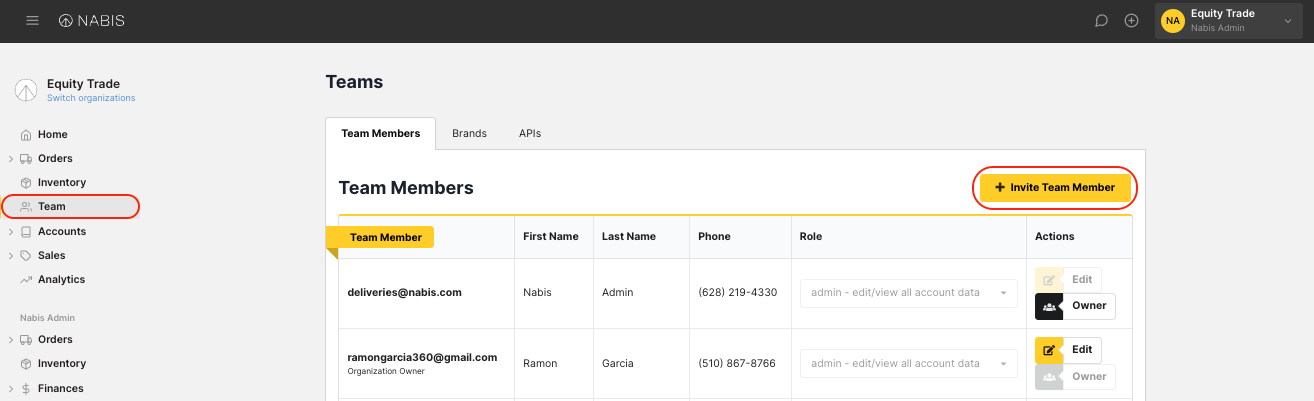
Enter the user’s email address, and click ‘Invite’.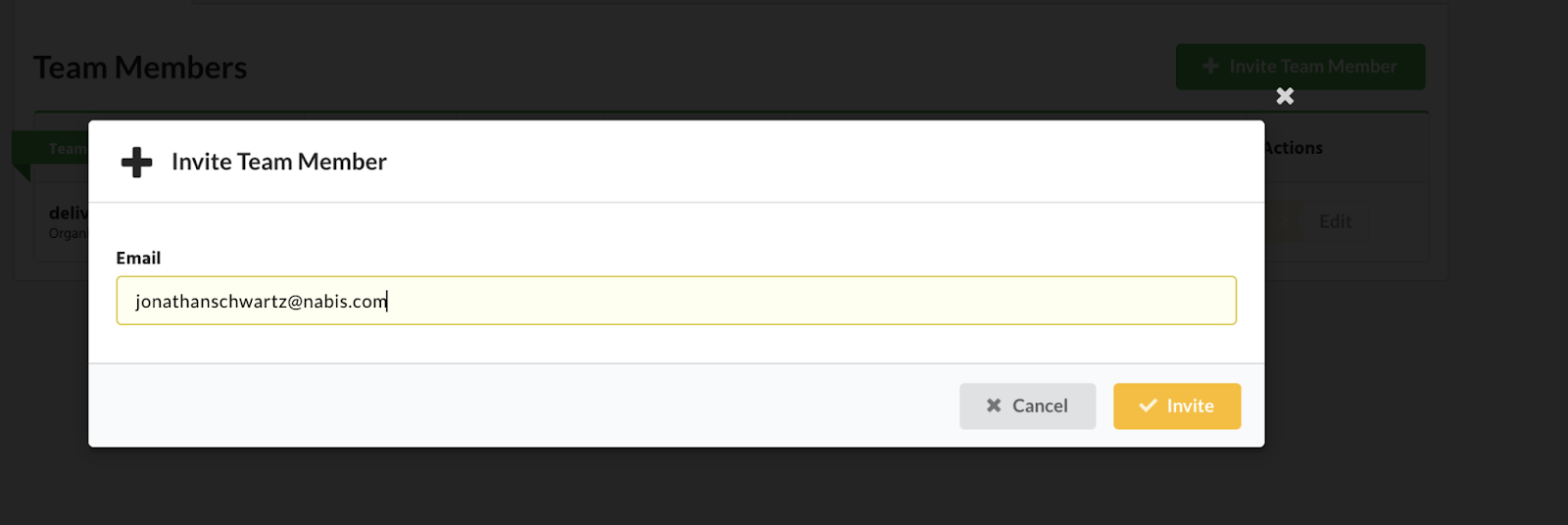
The user will then receive an email to sign up on Nabis. 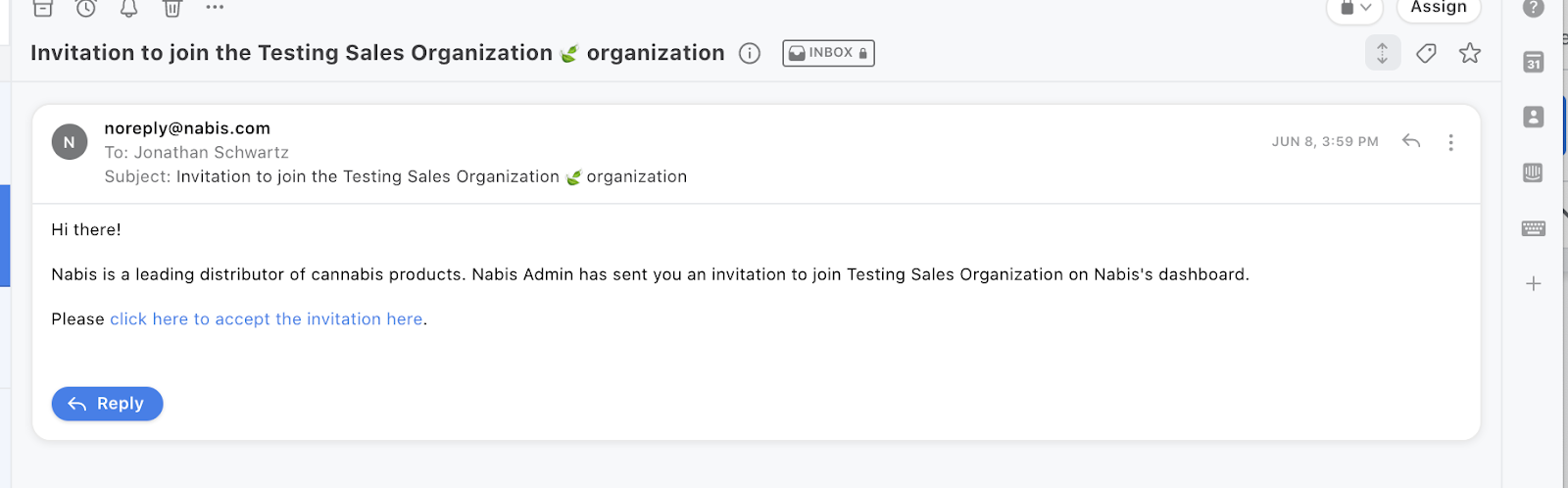
Note: If the email address already has an associated account, once invited, the user can simply log in to Nabis at the ‘My Organizations’ page, or clicking on the Nabis Logo in the upper-left corner, then scroll to the bottom to see ‘pending invites’ to a new Sales Organization.
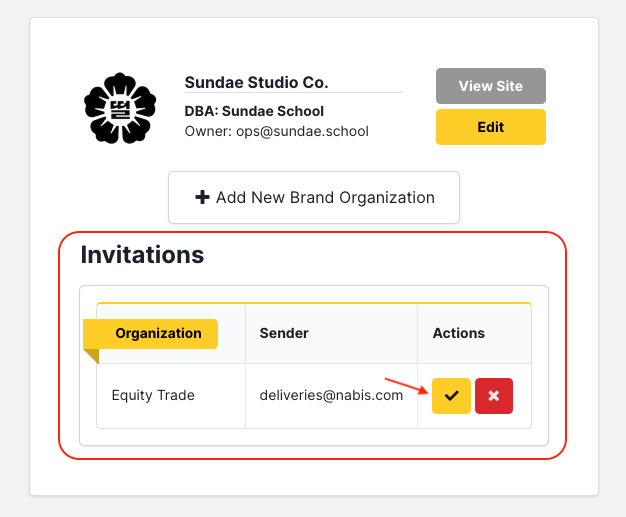
By default, new users will be added as Sales Rep team ‘Users’. For the first invite, a Nabis Admin will need to upgrade this user to an ‘Admin’ in order for that user to have full privileges.
Any sales team member invite additional team members using the same Team Tab → “Invite Team Member” button, and Sales Team Admins can alter the user roles of any of their team members at any time.
Brand Admins see ALL orders, including Sales Reps and Brand Reps, on their Orders Page. 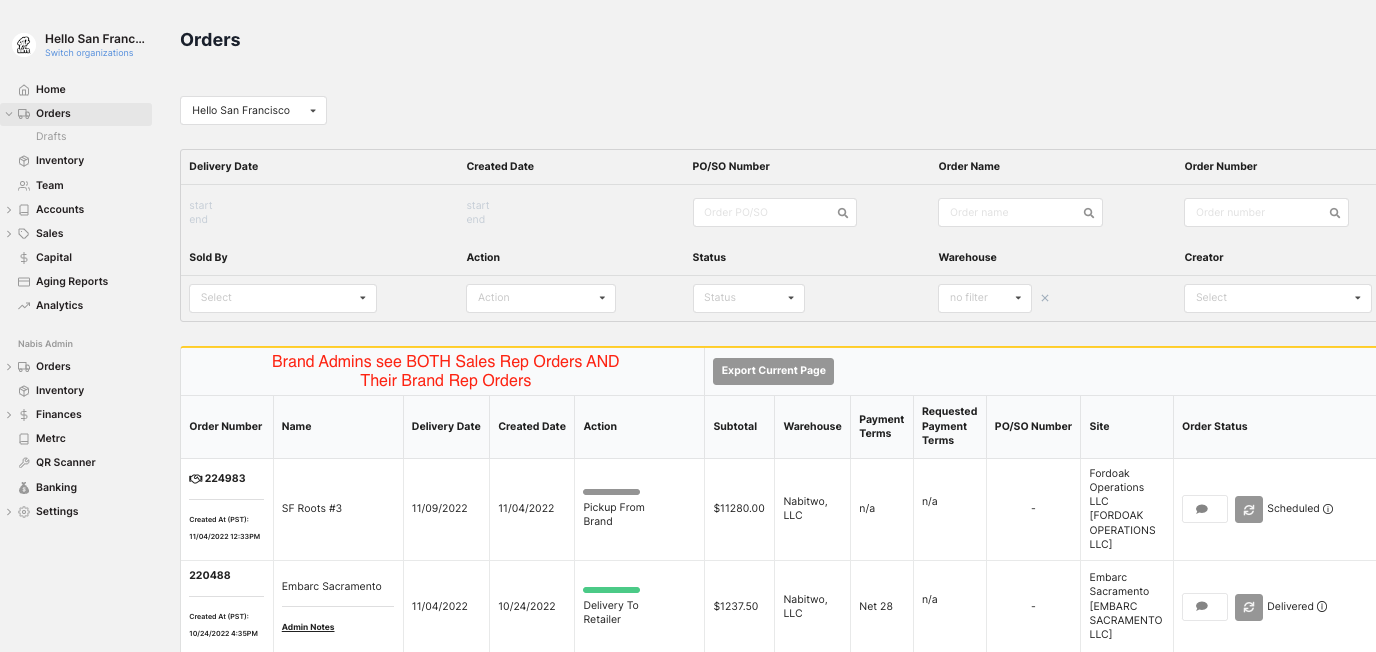
Sales Team Admins ONLY see All Orders placed by their Sales team, not the Brand Team members.
As an Admin (sales agency/brand admin), please navigate to the Sales Organization’s page, then Team → Brands Tab → Add Brands button:
Go to the Orders Tab → ‘All Brands’, and select one of the Brands:
- Click the ‘New Order’ Button to open up the new Order Form
- Select a Retailer and fill in the basic delivery details for the ‘Parent Order’
- Click the ‘Add Order’ button, which will then open up a Brand Sub-Order Window
- Select the Brand in the ‘Choose a Brand For This Order’ dropdown, which needs to already have been linked to the user’s Sales Organization.
- Select the Payment Terms -- Note: These can be different for each Brand Sub-Order.
- Select the line items specifically for that Brand Sub-Order, and hit ‘Save Brand Order’ to go back to the main Order form.
- Now, you can add additional Brand Suborders, Edit your existing sub-order, or remove it before final submission.
The Total GMV of all Brand Orders needs to be above $1700 in order to be submitted.
All sub-orders will then only be charged their standard Distribution Fee (no $170 Minimum fee)
Note: orders placed through the brand org by sales org users do not qualify for the waived minimum fee. Only orders with the handshake symbol that were placed through the sales org qualify for the waived minimum fee.
On the sub-order area, there is a checkbox for whether the order is a ‘Sample/Demo’ Order.
Note: Standard $60 Sampling Fees will be incurred to each participating Brand for any Sales Team submitted orders.
WHAT HAPPENS IF SALES REP TEAM MEMBERS COMBINE SAMPLE AND NON-SAMPLE SUBORDERS?
Sample Only Sales Rep Orders:
Sales Reps can freely submit Sample Orders for a $60 fee, incurred by the Brand. Submitted in the same manner as the Brand order form .
Submitting Sample + Non-Sample Sub-Orders:
- For a combination of Sample Orders (Order “BZL Samples”) and Normal Orders, the normal orders subtotal needs to be above the minimum threshold, by default at $1700 (this threshold can be configured specifically for a specific Sales Org)
- Sample orders will be charged $60 per sample order, and Normal Delivery to Retailer Orders will be charged the distribution percentage (no min fee for non-sample sub-orders)
All Non-Sample Orders
If the Orders have reached above the Sales Rep threshold, by default, $1700, the Brand Minimums will NOT apply. Similar to the Marketplace ‘No Brand Mins’ rule, we only charge the distribution percentage for orders that are above this minimum threshold, which can be configured specifically for each Sales Org. Example: BZL is a sub-order of $200, 1LDX has a sub-order of $1500, and the Sales Rep Minimum is set at $1700. Both BZL AND 1LDX will be charged their Distribution % (no min fee).
Sales team users will see the Home Dashboard, Messages, Orders, Drafts, Inventory, Team, Address Book, and Marketplace.
Notes: As a sales team USER (non-admin) the Marketplace tab is not visible, and for all Sales Team users, the Aging Reports and Analytics Dashboard is currently not visible (we do have plans to follow-up with Analytics Dashboard functionality soon in the near future)
Sales Team Admins and Managers have full access to their participating Brands to fully Manage their Marketplace Environment. To configure the Marketplace, the Rep will need to select a specific Organization:
Once selected, the user can update the Marketplace settings just as a Brand would.
- Sales Admins can navigate to the Inventory Tab → All Organizations dropdown to add/edit inventory for their associated Brands.
No, Sales Team Members can only see orders they submit (or, if they are an Admin, orders their own Sales Team members submit) on behalf of their associated Brands.
Technically, there is no link of the Nabis API with the Sales Team itself, but Sales Team members can receive API access (by reaching out to the Brand Admins or Rob K. on our team) for each individual Brand they represent.
Yes, if a Sales Team member selects multiple ‘sub-orders’ with multiple brands for the Same Retailer, they can select different payment terms for each (just like on the Marketplace).
A Draft is a saved copy of the Parent order for a Sales team, so each of the Brand Suborders are saved together in one full draft in the Drafts Tab.
Yes, and for any functionality they are unable to receive at this time on the Sales Team Dashboard, users can select the Nabis logo in the upper-left-hand corner to toggle between their organizations.