OVERVIEW
Below, we'll guide you through the essential features and core functionalities of how to track credit memo types and notes:
Brands will have the option to add credit memos via two methods, the orders page, and the order form, these input methods have not changed.
ORDER FORM
-
To add a credit memo type and note in the order form, click on the "Add" button next to the credit memo field, then add your selected credit.
- This Credit Field will be at the same location as it always has been, except now we have added an “Add” field.
ORDERS PAGE
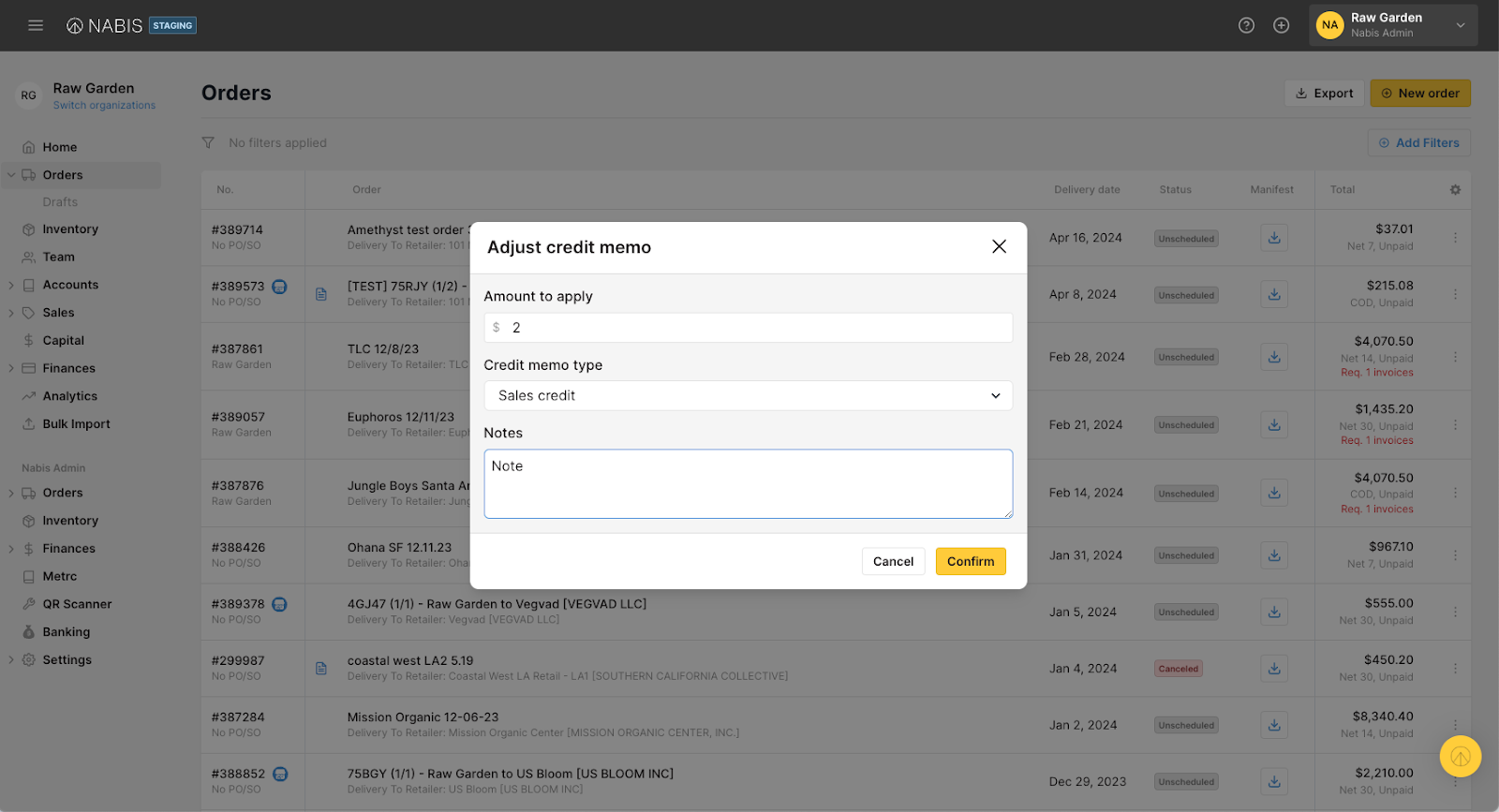
- Easily add or update Credit memo types and notes on the Orders page after submission by clicking on the 3 dot menu and selecting “Add/Update credit memo”.
CREDIT TYPES
-
Promotional Credit
-
Sales Credit
-
Faulty Hardware Credit
-
Return Credit
-
Settlement Credit
-
Rollover/Overpayment Credit
- Manufacturing Error Credit
EXPORTING
-
After adding a credit memo to an order, its corresponding credit type and notes will appear in the order export CSV.
-
If you do utilize our detailed orders export, the same columns are also available.
-
New column names are -
-
Order Credit Type
-
Order Credit Amount
-
Order Credit Notes
-
-
ACCESSIBILITY
-
Once the invoice’s status flips to one of the payment status options below, the availability to add a credit Memo will become unavailable.
-
Self-collected
-
COD, paid
-
Net terms, paid
-
Remitted
-
Approved for Capital
-
-
Any other status’ on our site, along with an order currently being fulfilled will still allow for brands to input credit memos.
If you have any questions or require assistance, feel free to reach out to our support team at help@nabis.com for prompt assistance.